

AR for museums and exhibitions: 6 formats, from talking labels to indoor navigation
 Advice
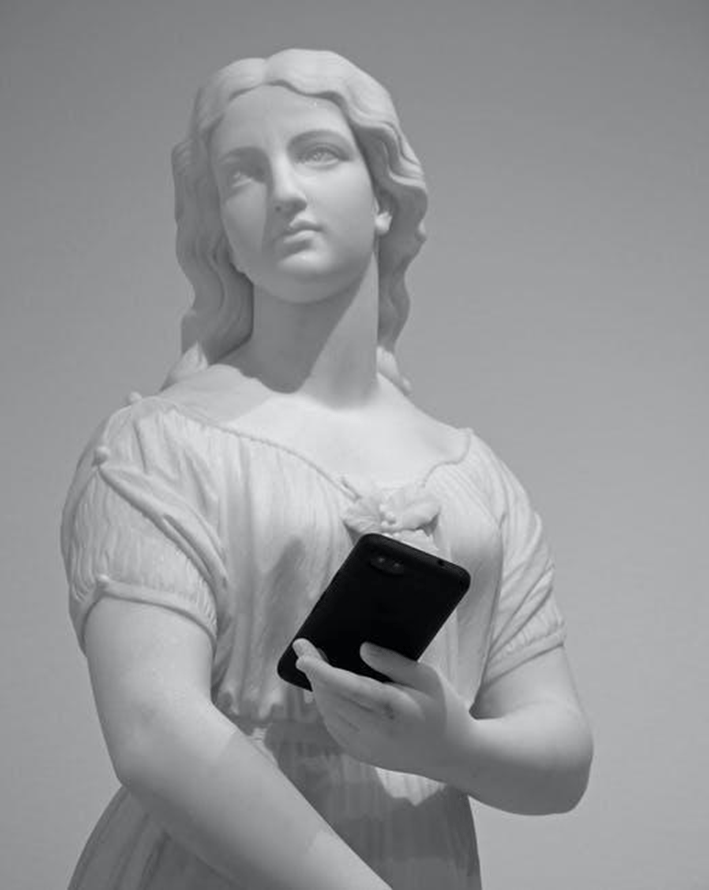
AR lets a museum add a layer of stories to its halls without new screens or printed panels. Visitors scan a QR code, point the phone at a painting or a label, and see a video, hear a voice or meet a 3D object, all in the phone's browser. Here are six formats that work, what each one needs, and how to start with a small pilot.
Why AR fits museums
- Visitors use their own phones. No devices to hand out, charge and clean.
- No app to install. A QR code next to the exhibit opens the AR in the browser.
- Content can change. A new tour or a temporary exhibition means a new project, not new panels.
- No code needed. Museum staff can build it in a visual editor such as WAS Design Studio.
6 formats
1. A painting that comes alive
The visitor points the phone at a painting, and it starts to move: the sea waves, the figures turn, the artist's sketch appears under the paint. This uses photo tracking: the painting, or its reproduction on the label, is the trigger. Make the first frame of the video match the painting, so it seems to come alive rather than be covered.
Check the real conditions: glass, varnish and spotlights cause glare, and dark paintings in dim halls can be hard to recognise. If the original doesn't track well, use a detailed reproduction on the label as the trigger. More: how to pick a picture that tracks well.
2. Talking labels and audio guides
The label becomes the start of a short story: the curator's voice, an actor reading a letter, the sound of the place. You don't need a studio for a first version: write the text, turn it into an audio file with a text-to-speech service, and add it to the scene together with photos or video. Add the same words as text on screen for visitors who can't or don't want to listen.
3. Objects you can walk around
Fragile objects stay in their cases, but their 3D models don't have to. With surface tracking, a visitor can place a vase, a skeleton or a machine on the floor next to them and walk around it. The same models can live on your website as a 3D viewer: WAS 3D Configurator lets you embed 3D and AR on any page.
4. Step into another time or place
An AR 360° scene surrounds the visitor with a panorama: the street as it looked a century ago, the inside of a building that no longer exists, a landscape from a painting. It works well for history and archaeology.
5. Routes and navigation
For routes through a park, a city or a large site, GEO AR starts a scene when the visitor reaches a set place. It is available on paid plans. For indoor navigation and permanent AR signs without markers on the walls, Web-AR.Studio offers VPS (visual positioning) on its top tier. Ask the team about your space before you plan around it.
6. Trails for families and schools
A treasure hunt through the halls keeps children busy and adults happy. Each station has a picture or a QR code that opens a clue to the next one, and the last station gives a reward. School groups can do the same with questions after each exhibit. See how to make a WebAR game without code.
Practical details
- Connection. Check the mobile signal in every hall, or offer guest Wi-Fi near the AR exhibits. Keep video files light.
- Signs. Put the QR code and one line of instructions on the label: "Scan, then point your phone at the painting".
- Languages. Record the audio in each language you need and let visitors choose on the first screen.
- Accessibility. Pair sound with text and video with captions. Not every visitor can hear or see everything.
- Your brand. Connect your museum's own domain and set up the loading screen, so the AR looks like part of your exhibition.
- Feedback. The built-in analytics show which exhibits people open, so you can see what interests visitors.
Run a pilot in 5 steps
- Pick three exhibits with strong stories and good light.
- Choose one format for all three, such as living paintings or talking labels.
- Build and test on site with several phones, at the real distance, at different times of day.
- Launch with clear signs and ask the staff to show visitors how it works in the first weeks.
- Look at the analytics and visitor feedback, then decide what to expand.
Ready to plan your exhibition? See how Web-AR.Studio works for art and culture, then start a museum pilot in WAS Design Studio. The basic features are free, with no time limit.
FAQ
Do visitors need to install an app?
No. They scan the QR code next to the exhibit, and the AR opens in the phone's browser.
Does it work with paintings behind glass?
Often, but glare is the main risk. Test it in the real light. If the original doesn't track, use a detailed reproduction on the label as the trigger.
Can we update the content without reprinting labels?
Yes. The QR code leads to your project, so when you publish changes, the same code shows the new version.
Do we need markers on the walls?
For photo tracking, the painting or the label is the marker. For routes, GEO AR works by location. For indoor navigation without markers, ask about VPS.
Recommended articles


Learn more about how to use Web-AR.Studio
We'll show you how to do this and answer all your questions in our educational AR webinar!
AR.Studio Cookie Notice
We use cookies that are necessary to run this site, and analytics cookies only if you accept. You can change your choice at any time. More details
